
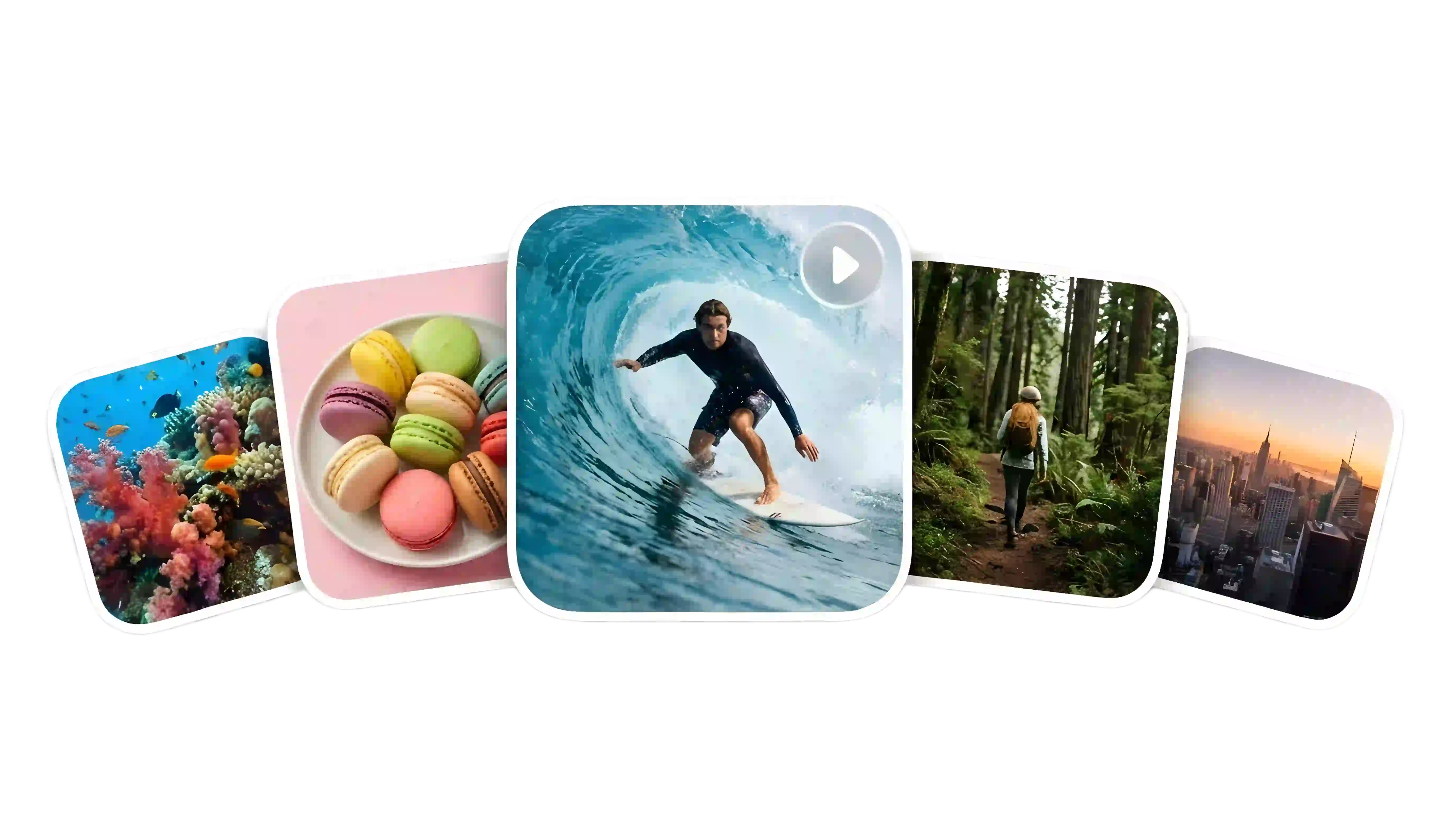
Google Veo 3.1AI Video Generator

Veo 3.1: AI Video Generator with Audio

Powered by Veo 3.1. Create cinematic videos from text or images with native audio, reference-guided motion, and flexible 16:9 or 9:16 output for ads, social clips, and product storytelling.

  • Text and image to video
  • Native audio and sound effects
  • 16:9, 9:16, and 1080p support
AI Video Generator
0 / 2000
Prompt:

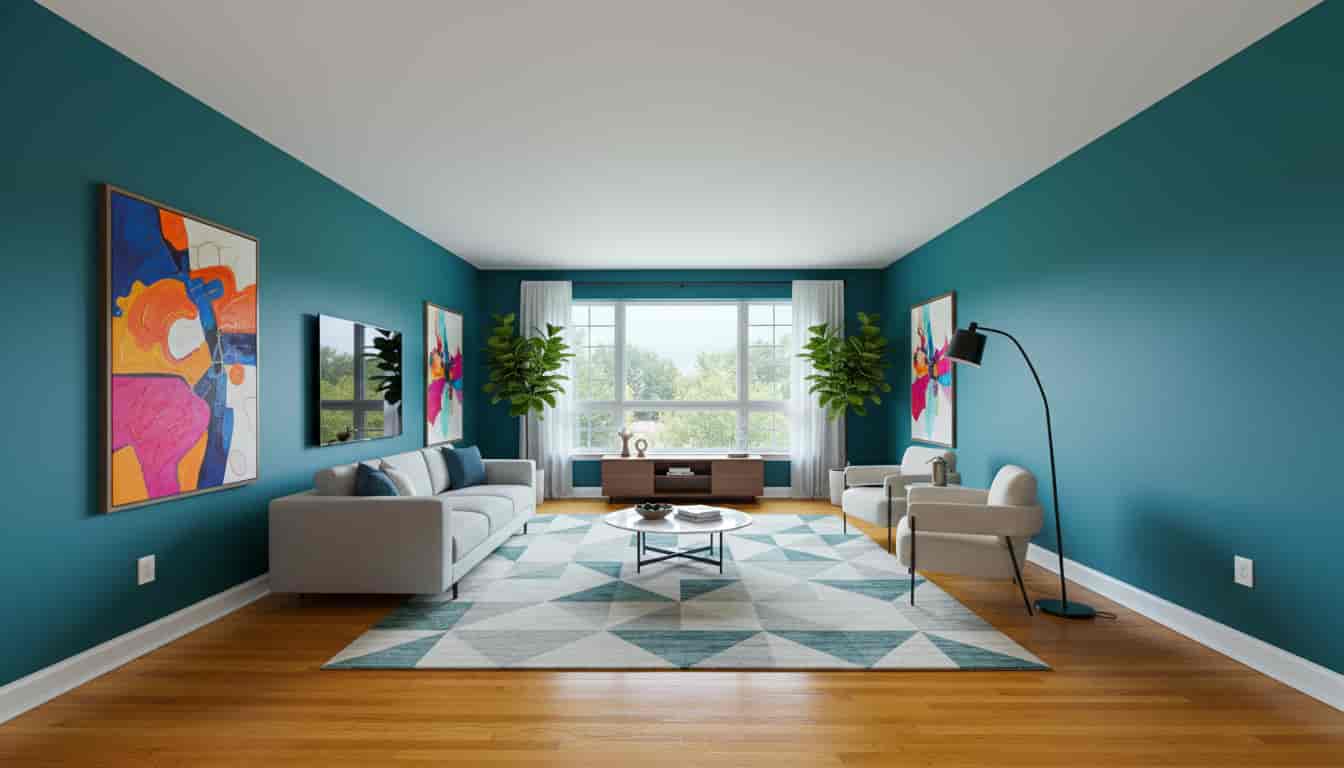
A swift, glowing surge of energy sweeps through the room, scattering glittering particles as it moves. In the following moments, those particles gather together and gracefully form the furniture and decorative pieces, each element appearing and settling into position one after another until the space is completely transformed. Audio: Start with a sharp whoosh, then layer in delicate sparkling tones that gradually build, ending with a soft magical chime as the last piece locks into place.

Swipe to explore

See What Veo 3.1 Can Create

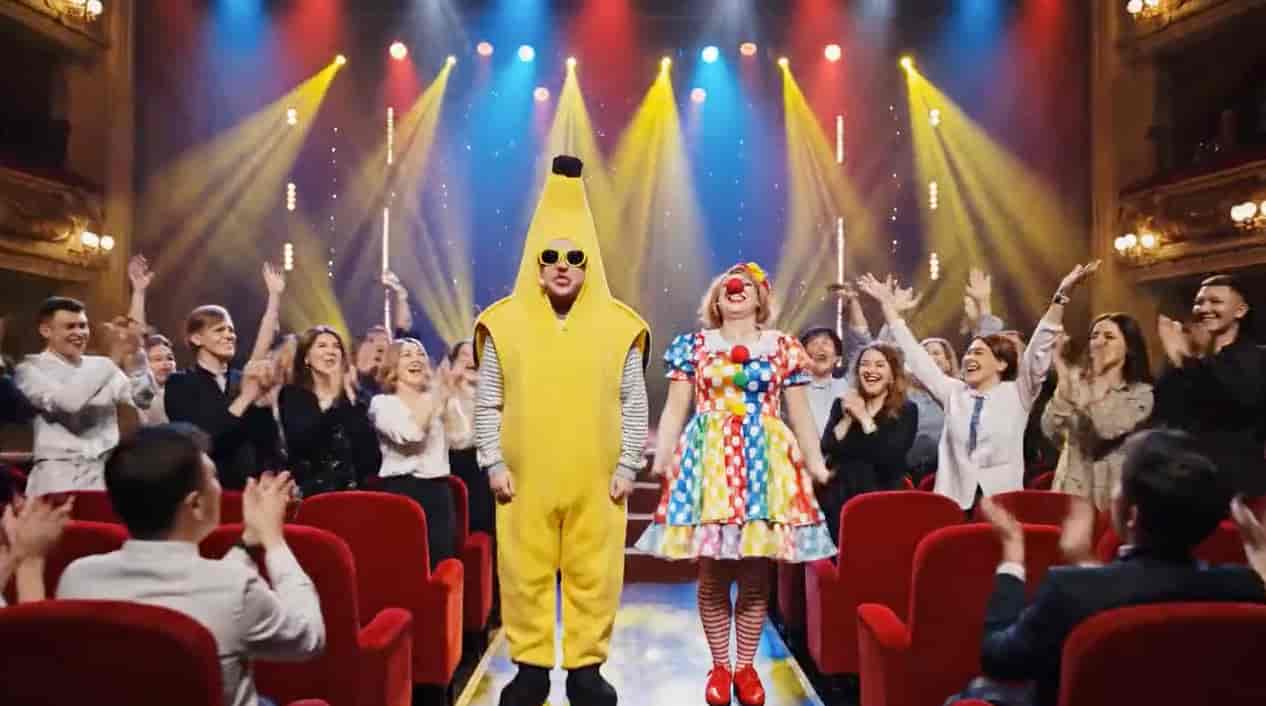
Explore real examples of how Veo 3.1 creates cinematic videos from prompts, single images, start and end frames, and reference-guided inputs.

Original image

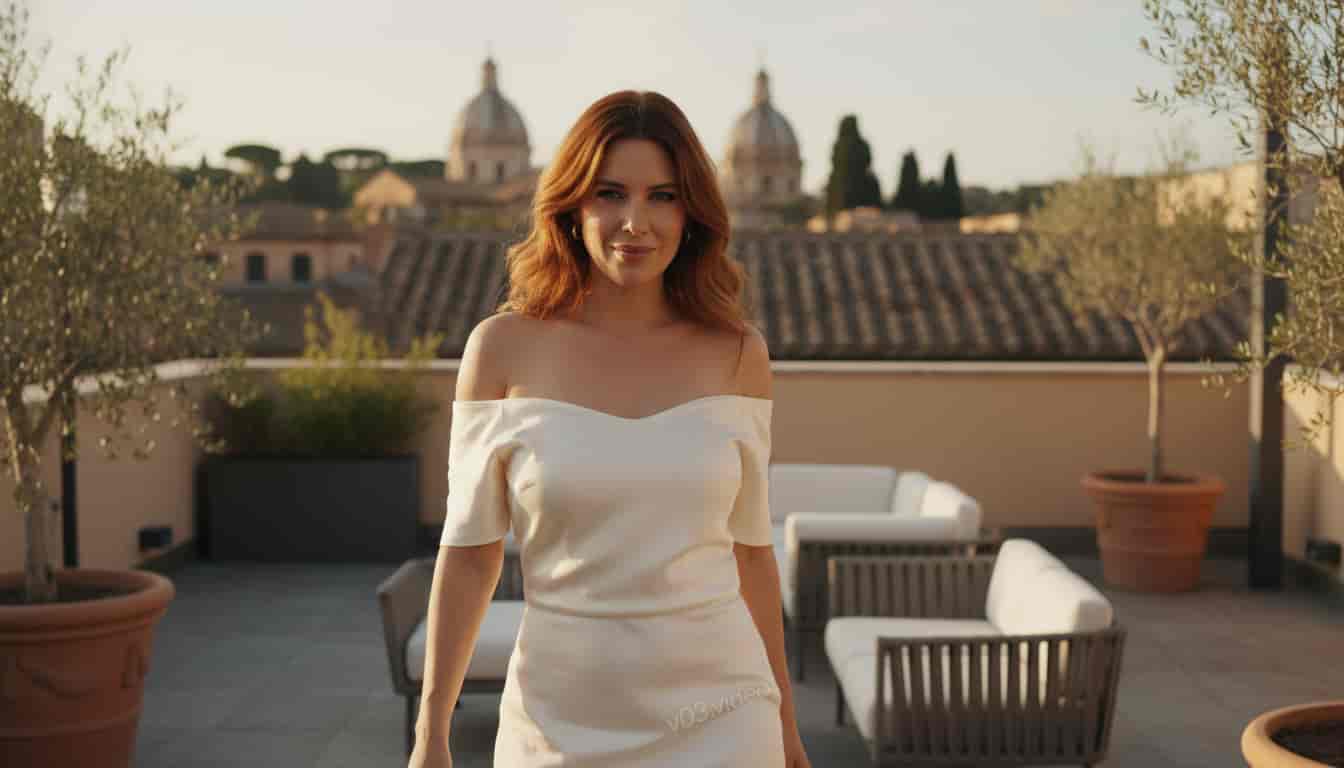
Veo 3.1 cinematic portrait source image for image-to-video generation

Prompt

Create an 8-second realistic video from this image with soft upper-body movement. The subject blinks naturally, slightly turns her head, changes expression with a gentle smile, subtly shifts her shoulders, and lightly moves her hair with one small hand gesture. Use a slow push-in camera and keep the motion elegant and lifelike. Add soft wind sound and light ambient audio. No full-body dance, no exaggerated movement, no flicker, no facial distortion.

Result video

Original image

Veo 3.1 fashion reference image for image-to-video generation

Prompt

Create an 8-second realistic studio fashion video from this image. The subject makes smooth editorial pose changes: slight shoulder angle change, soft head turn, chin lift, gentle arm reposition, and confident eye contact with the camera. The movement should feel like a professional fashion photoshoot. Use a slow side tracking shot with a subtle push-in. Add soft shutter click sounds and clean studio room tone. Keep it elegant, high-fashion, smooth, stable, and realistic. No fast movement, no distortion, no flicker.

Result video

Original image

Veo 3.1 first-frame product image for guided commercial video generation

Prompt

Create a cinematic commercial video from this image. The bottle moves slightly with the wave, and the cap instantly pops off with force and flies away out of frame. Water splashes dynamically around the bottle, sparkling droplets fly upward, and bubbles rise inside the drink. Sunlight shines through the bottle with strong reflections on the water. Use a slow dramatic push-in for a premium hero shot. Add ocean wave sound, crisp splash effects, and refreshing soda fizz. Keep it realistic, smooth, glossy, stable, and high-end. No distortion, no flicker, no warped bottle shape, no unstable label.

Result video

Key Features of Veo 3.1

Powered by Veo 3.1. Create cinematic videos with native audio, stronger visual guidance, and flexible output for wide or vertical delivery.

  • Create from text, a single image, start and end frames, or up to three reference images for more control over motion, identity, and style.
  • Generate with native audio and sound effects so early drafts feel closer to a finished scene.
  • Export in 16:9 or 9:16 for wide or vertical delivery.
Veo 3.1 text-to-video and image-to-video cinematic scene generation

Cinematic Video from Text or Images

Create cinematic clips from prompts or still images with stronger prompt guidance, smoother motion, and a faster path from concept to draft.

Veo 3.1 native audio and sound effects for cinematic video creation

Native Audio and Sound Effects

Generate videos with built-in audio and sound effects so dialogue cues, ambience, and scene energy feel more complete in each draft.

Veo 3.1 1080p landscape and 9:16 vertical video output

Flexible Wide and Vertical Output

Create wide or vertical videos for campaigns, product stories, and social content without rebuilding the concept for each format.

How to Use Veo 3.1

Write a prompt or upload references for Veo 3.1
Step1

Write a Prompt or Add References

Write a prompt, then add one image, start and end frames, or up to three references when you need more control over identity, products, or scene direction.

Choose Veo 3.1 generation mode and settings
Step2

Choose Mode and Video Settings

Choose text-to-video or image-to-video, then set the aspect ratio and output options that fit your use case.

Generate review and export Veo 3.1 videos
Step3

Generate, Review, and Export

Generate a draft, review motion and audio, then iterate or export the version you want to keep.

Where Veo 3.1 Works Best

Built for cinematic video creation, native audio, reference-guided control, and flexible 16:9 or 9:16 output.

Create ad clips, brand spots, and campaign explainers faster.

Turn campaign ideas into cinematic drafts with audio, clearer motion direction, and flexible output for ad teams and brand reviews.

Cinematic brand spot filming setup with camera monitor and talent on set

Produce vertical-ready creator videos and social teasers.

Create short-form videos for reels, launches, and storytelling posts with 9:16 output, audio, and stronger visual consistency.

Two creators recording conversational studio content for social and creator video

Show products, packaging, and spokesperson moments with more control.

Use reference images to keep products, packaging, and spokesperson details more aligned across demos, launches, and ecommerce video drafts.

Beauty creator presenting a product on camera for demo-style content

Turn shot ideas into moving previs scenes before production.

Guide motion with prompts, references, and start and end frames to test pacing, reveals, and camera direction before the shoot.

Storyboard cards arranged on a table during film scene planning

Explore More AI Video Models

Compare Veo 3.1 with other AI video models on TopMaker AI for different speeds, controls, and output styles.

Veo 3.1 FAQ

Common questions about Veo 3.1, including video creation, audio, reference guidance, and supported output formats.

Veo 3.1 is Google’s AI video generation model for creating cinematic clips from prompts and images. On TopMaker AI, it is used for video creation with audio, reference guidance, and flexible output formats.


You can create videos from text prompts or images, add native audio, and guide motion with references or start and end frames for more controlled results.


Yes. Veo 3.1 can use reference images to guide subjects, products, style, and scene details. This helps keep identity and visual direction more consistent across drafts.


Yes. Veo 3.1 supports native audio, including dialogue cues, ambience, and sound effects, so drafts feel closer to a finished scene.


Veo 3.1 supports 720p and 1080p output, depending on the selected workflow and export path.


Use a clear prompt, keep subject details stable, and add reference images when consistency matters. For more controlled motion, use start and end frames to guide the transition.

Create with Veo 3.1

Turn prompts and references into cinematic AI videos with native audio, guided motion, and flexible 16:9 or 9:16 output.