Start For Free

Flow AI Video Generator

Flow AI helps you create video clips and refine scenes in its creative studio. TopMaker AI offers multiple video models, image-to-video creation, and credit estimates before you generate. Try TopMaker AI for free.

0/2000
10credits

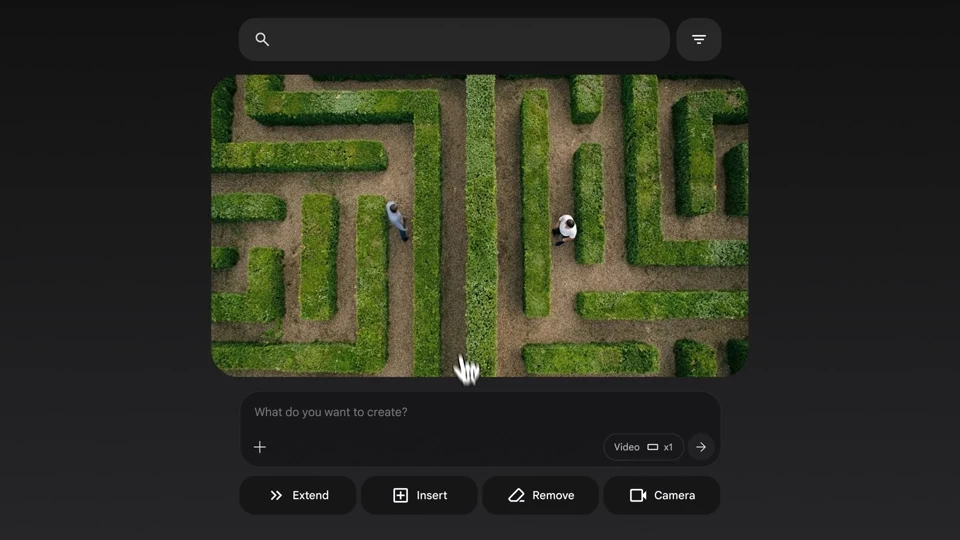
Turn image references into a scene

The Flow AI image-to-video workflow starts with images used as ingredients or frames. Bring a subject and a setting into the same scene, then describe the action and camera movement to develop a shot from assets you already have.

Try in Flow: bring a character reference and a location image into the same scene, then describe the action and camera movement.
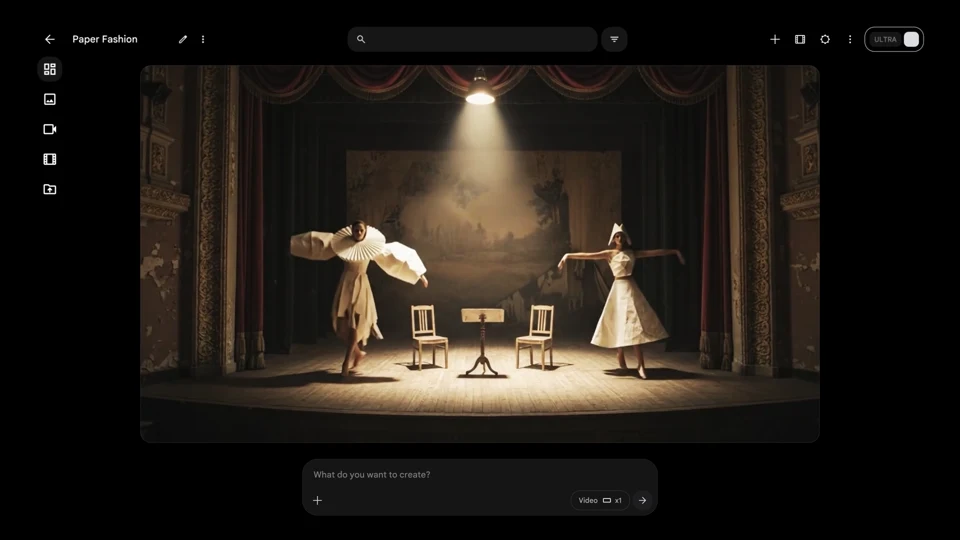
Official Google Flow Ingredients to Video demonstration

Develop a creative direction with Flow Agent

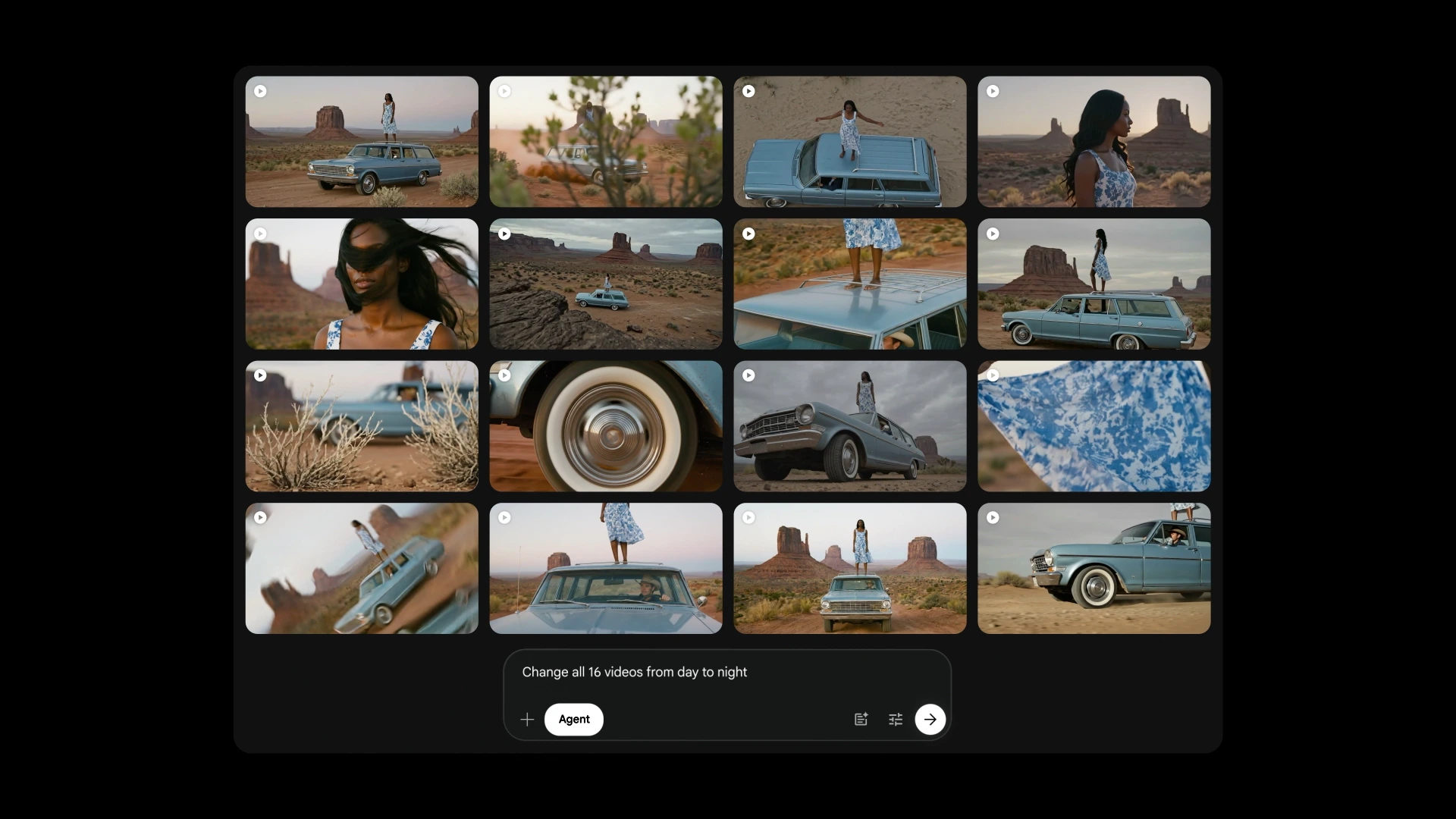
Flow Agent uses project context to help brainstorm, write dialogue, and explore story directions. It can generate variations and assist with batch edits as your project develops.

Try in Flow: ask Agent to change a group of daytime shots to nighttime, then review the updated assets together.

Official Google Flow Agent interface showing a grid of video assets and an instruction to change daytime shots to nighttime

Refine a scene with natural language

Describe a change to an image or video in Flow. For targeted image edits, select an area; supported video tools can add or remove objects and adjust a scene. Available controls depend on the model and your access.

Official Google Flow Remove Object demonstration

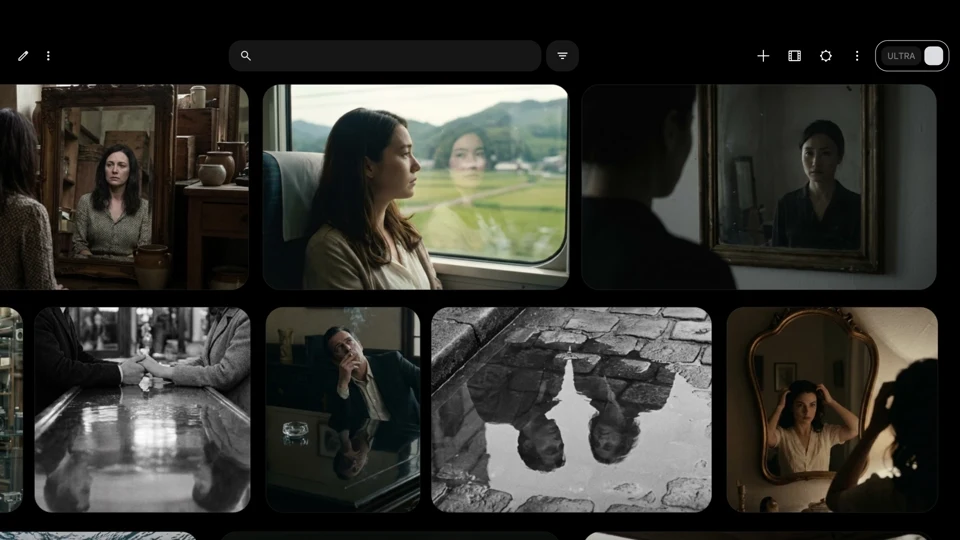
Organize a project with Collections

Search, filter, and sort your Flow asset library, then group related images and videos into collections. Reference existing assets in prompts and return to useful variations as a project develops. Together, these four parts form a Flow AI video generator workflow: reference-driven input, agent-assisted planning, natural-language refinement, and organized assets you can reuse.

Official Google Flow Collections asset library demonstration

What is Google Flow AI?

In this guide, Flow AI refers to the Google Flow AI video generator and its creative studio for building and refining visual stories. Generate images and video clips, use reference images to shape a scene, and adjust details with natural-language instructions. The Flow AI video generator connects these steps in one workflow, with collections that keep assets ready to reuse in later shots.

Where these tools fit your work

From an opening shot to a campaign concept, these four tasks show where Flow AI video and image generation fit into a project.

/ 01

A short-film opening

Develop dialogue and alternative scene directions with Flow Agent before generating shots. Use that plan to decide which moment to show first and what the next shot needs to establish.

/ 02

A product concept

Use product and setting references as video ingredients, then remove distracting objects. Reuse the references to explore another setting while keeping the product as the focus.

/ 03

A visual treatment

Select an image area and describe a targeted change to refine a mood or design direction.

/ 04

A campaign asset library

Group references and clips into Collections so the next variation starts from useful material.

How to Create a Video with Flow AI

Follow these steps in the Flow studio to develop a video idea. Use this workflow as a checklist when comparing a Flow AI video generator with another video tool, whether free or paid.

  1. 01

    Start with an Idea or Image

    Describe your scene or add reference images in the studio. Use existing assets or create images for your video.

  2. 02

    Generate and Refine

    Generate a clip, review the result, and use the available editing tools or variations to refine your scene.

  3. 03

    Organize Your Project

    Group related images and clips into collections so you can find and reuse them as your story develops.

Flow AI strengths and trade-offs

The right choice depends on whether you prioritize a connected creative studio or direct access to multiple models.

Flow AI’s Strengths

A studio for developing visual projects through multiple iterations.

  • Creative Planning

    Flow Agent can work with project context to help you develop ideas and explore story choices.

  • Built-in Models

    Generate images and videos with the studio’s supported models, then carry those assets into the same project.

  • Continued Refinement

    Use editing, variations, and reusable assets to develop a scene beyond its first draft.

What to Check Before Using Flow

Review the model options, feature access, and subscription terms for your workflow.

  • Model Ecosystem

    Flow uses its own model ecosystem. Check whether those models meet the needs of your project.

  • Feature Availability

    Capabilities can vary by region and between web and mobile. Confirm access to the tools you need.

  • Subscription Requirements

    Some models and tools require a subscription. Check the current plan and credit terms.

Flow AI vs. TopMaker AI

Choose by workflow, model choice, inputs, editing needs, and access costs.

Decision factorFlow AITopMaker AI
WorkflowDevelop scenes and connected visual projects in the studio.Generate a specific video, image, or audio asset in the editor.
Model choiceModels available within the Flow ecosystem.Select from the model families supported by TopMaker.
Starting materialPrompts, ingredients, frames, and existing project assets.Prompts and reference uploads supported by the selected model.
RefinementNatural-language editing, variations, and project organization.Adjust prompts, references, and generation settings; controls vary by model.
Access and costCheck the current plans, credits, region, and feature availability.See a credit estimate before generating. Some models require paid access; free credits apply only to eligible models.

Workflow

Flow AI
Develop scenes and connected visual projects in the studio.
TopMaker AI
Generate a specific video, image, or audio asset in the editor.

Model choice

Flow AI
Models available within the Flow ecosystem.
TopMaker AI
Select from the model families supported by TopMaker.

Starting material

Flow AI
Prompts, ingredients, frames, and existing project assets.
TopMaker AI
Prompts and reference uploads supported by the selected model.

Refinement

Flow AI
Natural-language editing, variations, and project organization.
TopMaker AI
Adjust prompts, references, and generation settings; controls vary by model.

Access and cost

Flow AI
Check the current plans, credits, region, and feature availability.
TopMaker AI
See a credit estimate before generating. Some models require paid access; free credits apply only to eligible models.

Create with TopMaker AI

Looking for a Google Flow alternative? Choose a video model on TopMaker AI, start from a reference, and review the credit estimate before generating. Eligible new users can receive free signup credits for eligible models. You need enough credits for each generation; free credits do not unlock models that require paid access.

  • Multiple video models
  • Reusable examples
  • Upfront credit estimates
  • Free starting credits on eligible models
Create Video
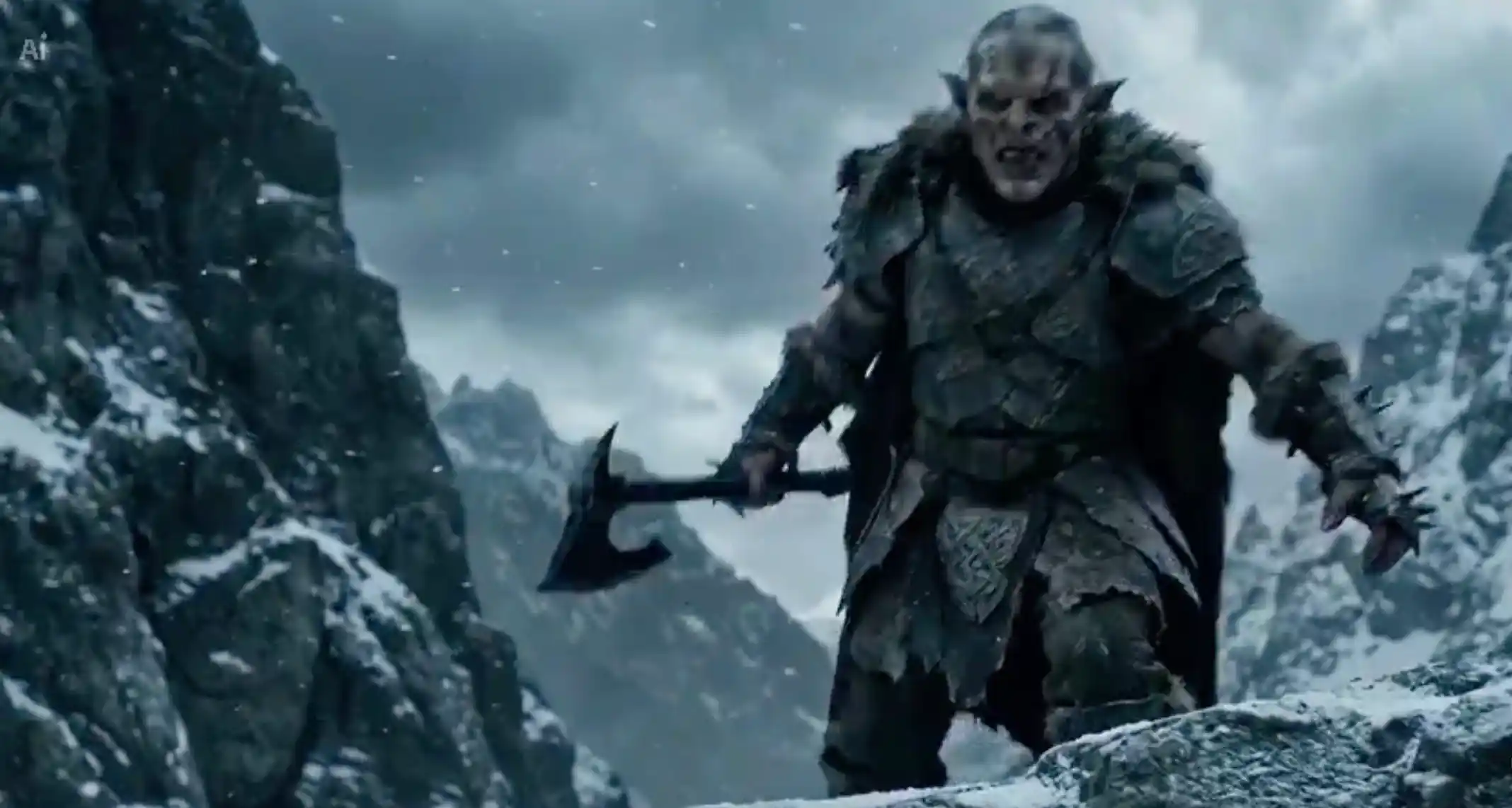
TopMaker AI example: Storm Titan
TopMaker AI example · Storm Titan

Explore TopMaker Tools

Continue in a TopMaker tool suited to your starting material.

Flow AI FAQs

Features, free access, pricing, apps, and choosing an editor.

What is Flow AI?

Flow AI is the creative studio described in this guide. It combines image and video generation, editing, creative planning, and asset management in a project workspace.

Is Google Flow free?

Yes. Flow offers free daily credits to try the studio without a subscription. Available models and features depend on your access and region, and video generation for non-subscribers can be limited during peak hours. Check the current terms in the official studio.

Can the Flow AI video generator animate an image?

Yes. Flow can use images as ingredients or frames for video generation, including images created within Flow. The available inputs and controls depend on the chosen model.

Can I edit images and videos in Flow AI?

Yes. Flow supports natural-language editing, targeted image changes, and video refinement. Available tools can include adding or removing elements and creating variations, depending on your model and access.

Is the editor on this page Google Flow?

No. This page’s editor and examples belong to TopMaker AI. It offers generation with supported models and does not provide the Google Flow studio, Flow Agent, or Flow collections.

When should I choose a different video editor?

Choose Flow when you want to develop a visual project in a connected studio. Consider another editor when you need a model outside its ecosystem or want to generate a specific asset with an upfront credit estimate. Compare the available inputs and controls with your project’s needs.

Is Flow AI free on TopMaker AI?

Yes. Eligible new users can receive free signup credits in this page’s editor, which is an independent service. Those credits apply only to eligible models, and your balance must cover the generation. They do not unlock models that require paid access. Review the credit estimate before generating.

How much does Flow AI cost?

Google Flow AI offers free access and paid plans with different credits and features. The cost of a generation depends on the selected model and settings. Check the official studio for current pricing, credit requirements, and regional availability.

Does Flow AI have an app?

Yes. A Flow mobile app was announced in the May 19, 2026 update, linked in Sources below. Check the official listing for current platform and regional availability; web and mobile features can differ.

Sources and review date

Last reviewed:

Features may vary by subscription tier, platform, and region. Check the official product before committing a production workflow.

  1. New agents, mobile apps and Gemini Omni for Google Flow and Google Flow MusicGoogle · May 19, 2026
  2. New ways to create and refine content in FlowGoogle · February 25, 2026
  3. Google Flow — AI Creative Studio for Video, Images & Custom ToolsGoogle Labs

Create your next video with TopMaker AI

Add a reference image, describe the motion, and choose a model. Review the estimated credits, then generate.

Create Video

TopMaker AI is an independent service and is not affiliated with or endorsed by Google. Media on this page is provided for creative inspiration and does not represent content generated by Google Flow.