
Text to Video
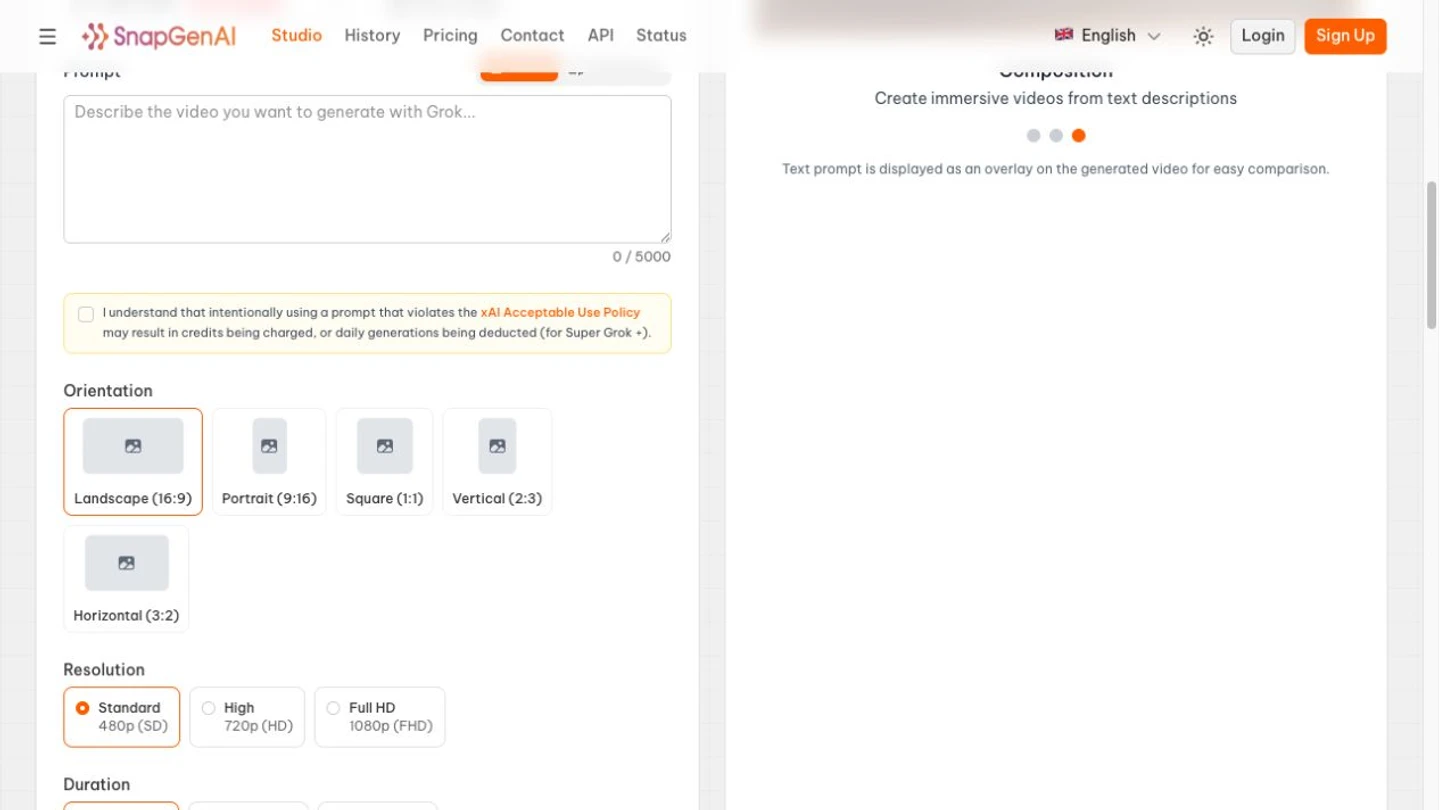
Describe a subject, action and camera movement, then select the available model and output settings in SnapGen’s video studio. It suits storyboard drafts, ad hooks and social openers built around one clear shot.
SnapGen AI offers video and image tools with model-dependent controls, while TopMaker AI combines selectable models, reference inputs and upfront credit estimates. Try the TopMaker AI video generator for free!
SnapGen AI is a browser-based platform for video and image creation, also searched as snapgenai. These six capabilities show how to use SnapGen AI: select a model, enter a prompt or add a supported reference, review pricing and access requirements, then generate.
Describe a subject, action and camera movement, then select the available model and output settings in SnapGen’s video studio. It suits storyboard drafts, ad hooks and social openers built around one clear shot.
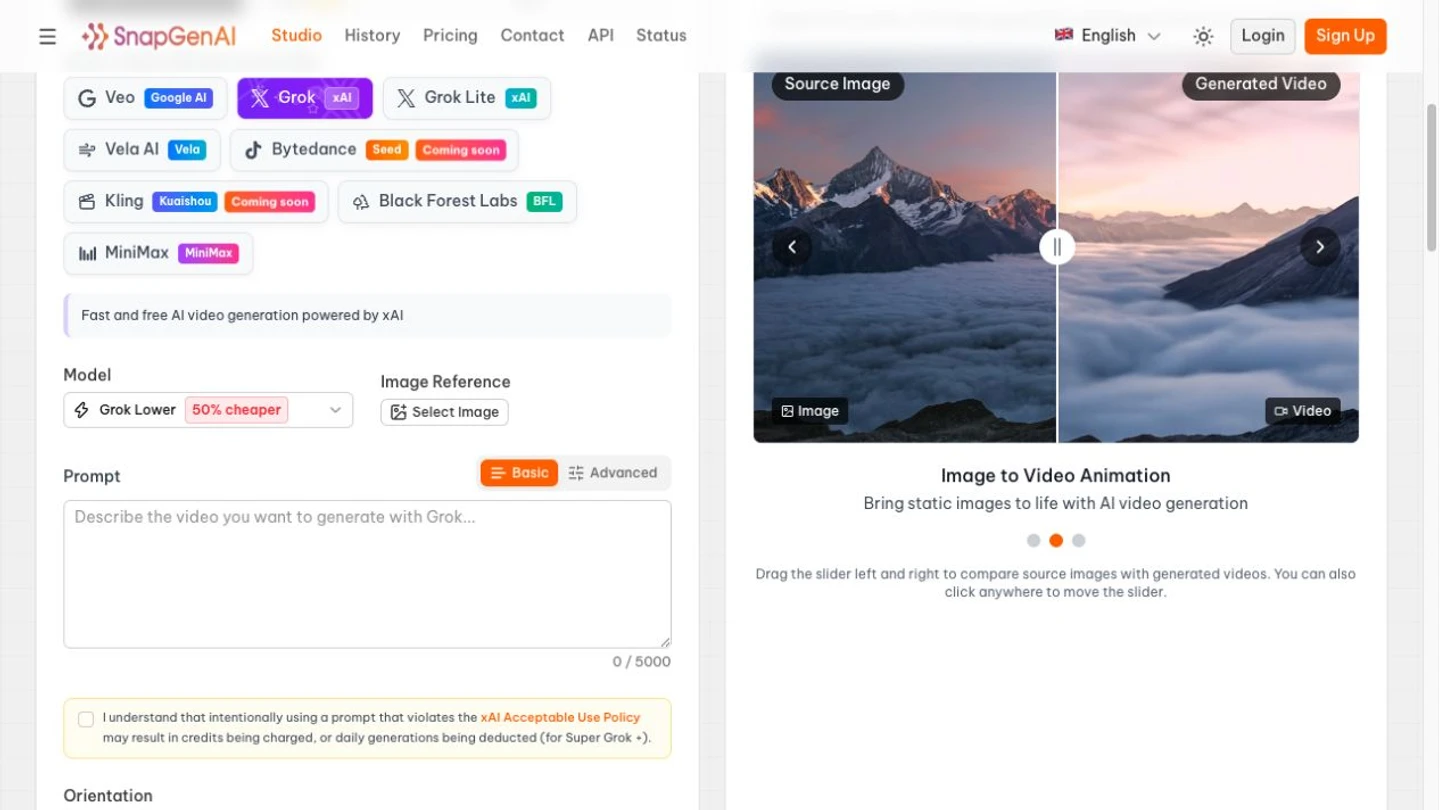
Add a still image and describe how the subject or camera should move, using a model that supports image references. It suits product shots, character art and concept visuals where a starting frame communicates the intended composition.
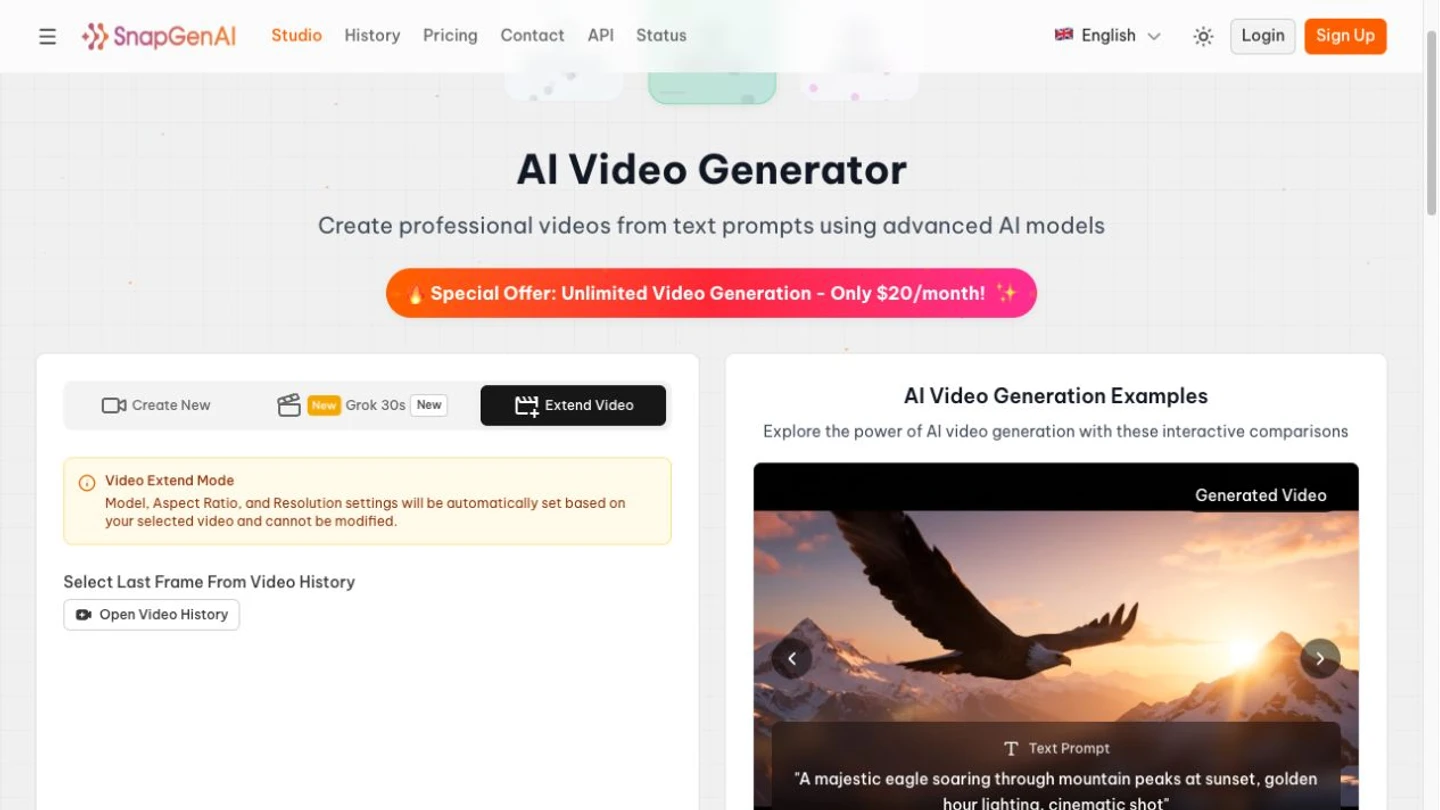
SnapGen’s Extend Video mode starts from a last frame selected through video history and inherits the source clip’s model, aspect ratio and resolution. It suits continuing an eligible shot when you can keep those settings and review the join for continuity.
Use SnapGen’s Imagen workspace to generate stills from a prompt and supported image references, with controls that vary by model. It suits exploring a product setting, character design or visual direction before turning a selected image into a video reference.
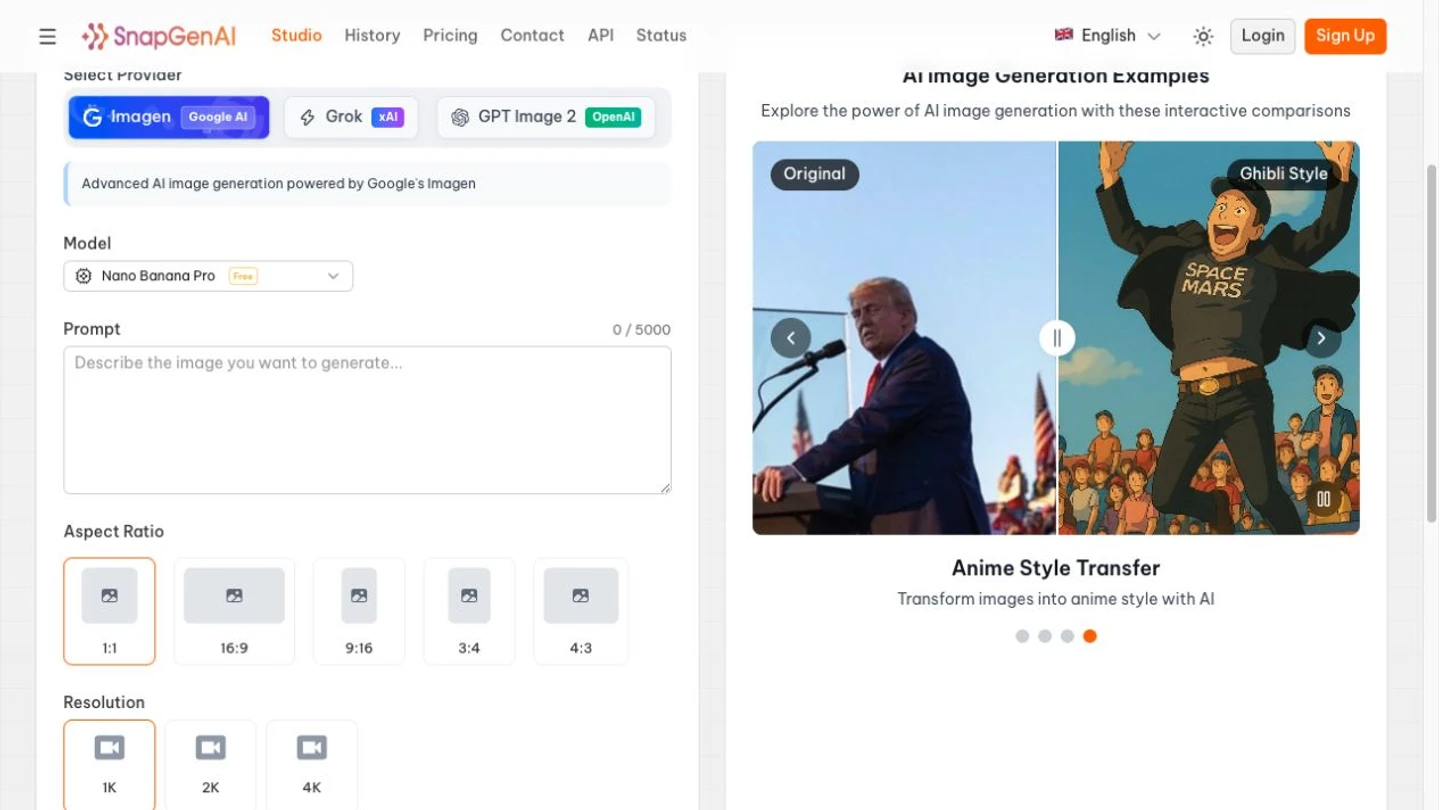
SnapGen lists a free tier alongside paid credits and video subscriptions, so check the model and allowance before generating. It suits exploring the service before choosing a paid workflow; offers described as unlimited can still have usage caps.
Choose an available provider and review the model’s supported duration, resolution and aspect ratio in SnapGen’s studio. It suits projects with specific output requirements, provided your selected model and account support the settings you need.
Test several short-video hooks with a focused prompt, then review model access and generation costs before scaling up production.
Draft cinematic shots and storyboard ideas to compare framing and motion before committing to a full production.
Animate a product still for listings, ads or landing pages, then inspect labels, proportions and other details before publishing.
Generate variations of a campaign idea and compare the results using the same brief, references and supported settings.
SnapGen provides access to underlying generation models; it is not itself a single video model.
SnapGen’s public interface shows Veo 3.1 Fast, and its Veo subscription lists Fast and Lite access.
SnapGen has a dedicated Grok video studio with prompt and image-reference inputs. Choose it when those available controls fit your shot.
SnapGen’s image workspace offers model selection for still-image generation, and its pricing lists models including Nano Banana and GPT Image 2. Use stills to explore visual direction, then check reference compatibility in the video model you select.
Looking for a SnapGen AI alternative? Compare model choice, reference inputs, video workflows and costs.
| Feature | SnapGen AI | Google Flow | TopMaker AI |
|---|---|---|---|
| Free allowance | Free tier alongside paid credits and subscriptions; model and usage conditions apply. | Limited daily free credits; video availability and paid-plan conditions apply. | Free signup credits for eligible new users and models; some models require paid access. |
| Model choice | Choose available providers and models in the official studio. | Google models including Veo and Gemini Omni; features vary by model. | Select from supported model families in the editor. |
| Reference inputs | Image references where supported; eligible history clips for extension. | Start/end frames and ingredients or references on supported models. | Image and multi-reference inputs supported by the selected model. |
| Video extension | History-based Extend Video mode with inherited source settings. | Extend eligible Veo clips; model and feature restrictions apply. | Use a compatible image reference for a follow-up shot; not a native Extend Video mode. |
| Image + video workspace | Video studio and Imagen workspace within the same service. | Image assets and video creation within Flow projects. | Video and image generation in the same editor, with model-dependent inputs. |
| Cost visibility | Public model pricing and plan allowances; confirm current access before generating. | Check model and credit costs in prompt-box settings before generating. | Review the credit estimate and model access requirement before generating. |
These are workflow strengths and conditions to review, not the results of an output-quality benchmark.
Browser-based workflow: Use the public studio without installing a desktop editor.
Model and output choices: Select available providers and the settings supported by each model.
References and continuation: Use supported image inputs or continue an eligible clip through Extend Video.
Plan and allowance limits: Free access, paid credits and subscription offers have different conditions, including usage caps.
Model-dependent controls: Reference support, duration and resolution can vary; extension mode inherits source settings.
Output review required: Check continuity, product details and export conditions before using a result.
Three controls decide how a shot turns out. Here is how TopMaker AI handles each one.
Select a model for each shot and keep that selection while loading examples to compare prompts and references.
Review the estimated credits and any paid-access requirement before submitting a generation.
Create stills and videos in the same editor, using the inputs and controls supported by your chosen model.
Start from a prompt or reference, compare another video workflow, or explore audio for your project.
Generate a shot from a written scene.
Describe motion for a still reference.
Guide a video with multiple supported references.
Compare Google Flow’s creative workflow.
Explore video reference inputs and controls.
Explore supporting audio for a video project.
SnapGen lists a free tier alongside paid credits and subscriptions. Its homepage says “free unlimited,” but not every model or setting is free without limits; paid video plans also list usage caps.
SnapGen AI is a platform for accessing image and video tools, while Veo 3.1 is an underlying video generation model. SnapGen’s public interface and pricing show Veo 3.1 options alongside other providers; available models and settings depend on access conditions.
We have not verified a universal watermark-free entitlement. Watermarks can depend on the model, plan and export options; the pricing page’s Logo Removal entry does not establish that all videos are watermark-free.
SnapGen has a browser-based studio, but this guide does not verify every mobile workflow or generation without signing up. Use the official website to check the current sign-in and device requirements; we do not provide or verify an official iOS app or APK.
There is no single best service for every task, and a free tier does not establish unlimited access to every model. TopMaker AI is an alternative with free signup credits for eligible new users and models, upfront credit estimates and paid-access requirements on some models. This page’s editor and examples belong to TopMaker AI and do not provide SnapGen’s official service.
Last reviewed:
Features may vary by subscription tier, platform, and region. Check the official product before committing a production workflow.
Add a reference, describe the motion and review the credit estimate. Eligible new users can try eligible models with free signup credits; paid-access requirements still apply.
Create VideoTopMaker AI is an independent service and is not affiliated with or endorsed by SnapGen AI or its operators. Official interface screenshots are shown for reference. This page’s working editor and inspiration examples belong to TopMaker AI and are not represented as SnapGen outputs.